Open Dashboard
In driver mode, open the menu and choose Dashboard. Check the profile, vehicle and verification information before reading the statistics.
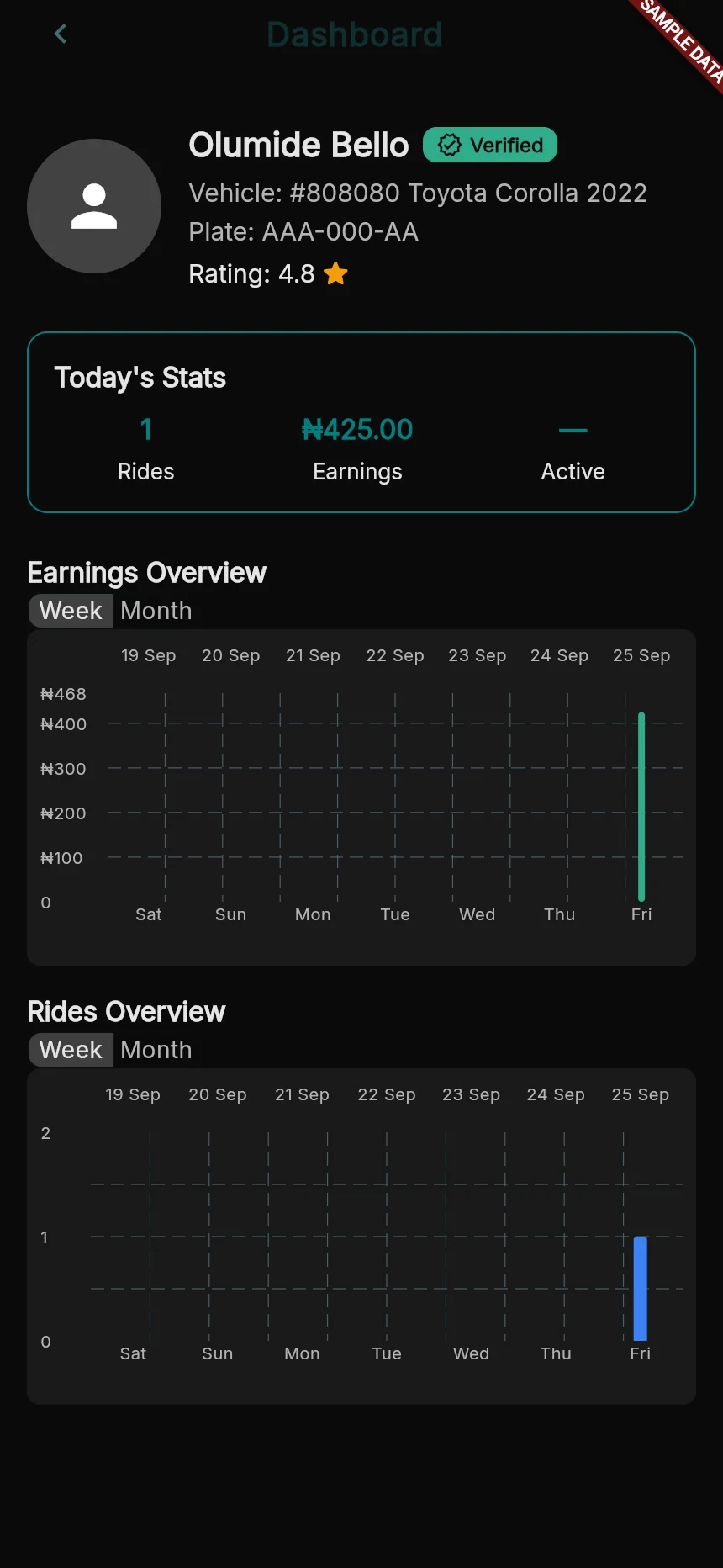
The dashboard summarises available activity.
Web app · sample data · Captured 2026-09-25
- 1Check the chart period before comparing totals.
- 2Use journey and wallet records to resolve a disputed amount.
Read Today’s Stats
Rides and Earnings summarise the data available to the dashboard. A dash such as — means a value is unavailable, not necessarily zero. The current app does not have a live source for its active-time metric.
Choose a chart period
Use Week or Month for the earnings and rides overviews. Compare the period you selected; do not add today’s total to the chart again if it already includes today.
Verify money against its records
Use Wallet’s financial history and the completed trip/session records for a disputed amount. A dashboard chart is a summary, not a transfer receipt.
How you know it worked
You can distinguish activity summaries, unavailable values and confirmed financial records.
A useful next step
If something goes wrong
A figure has not updated
Check the underlying trip/payment status and reload after reconnecting. Report a persistent mismatch with the relevant references rather than the chart alone.