Before you begin
- Use readable files within the size/type limits shown by the upload control.
- Keep each document’s text, edges and required identifying details visible.
Follow your current required list
Open Vehicle Documents or Driver Documents. The vehicle list depends on the chosen class. Car and keke requirements differ; follow the required markers in your current form rather than another driver’s checklist.
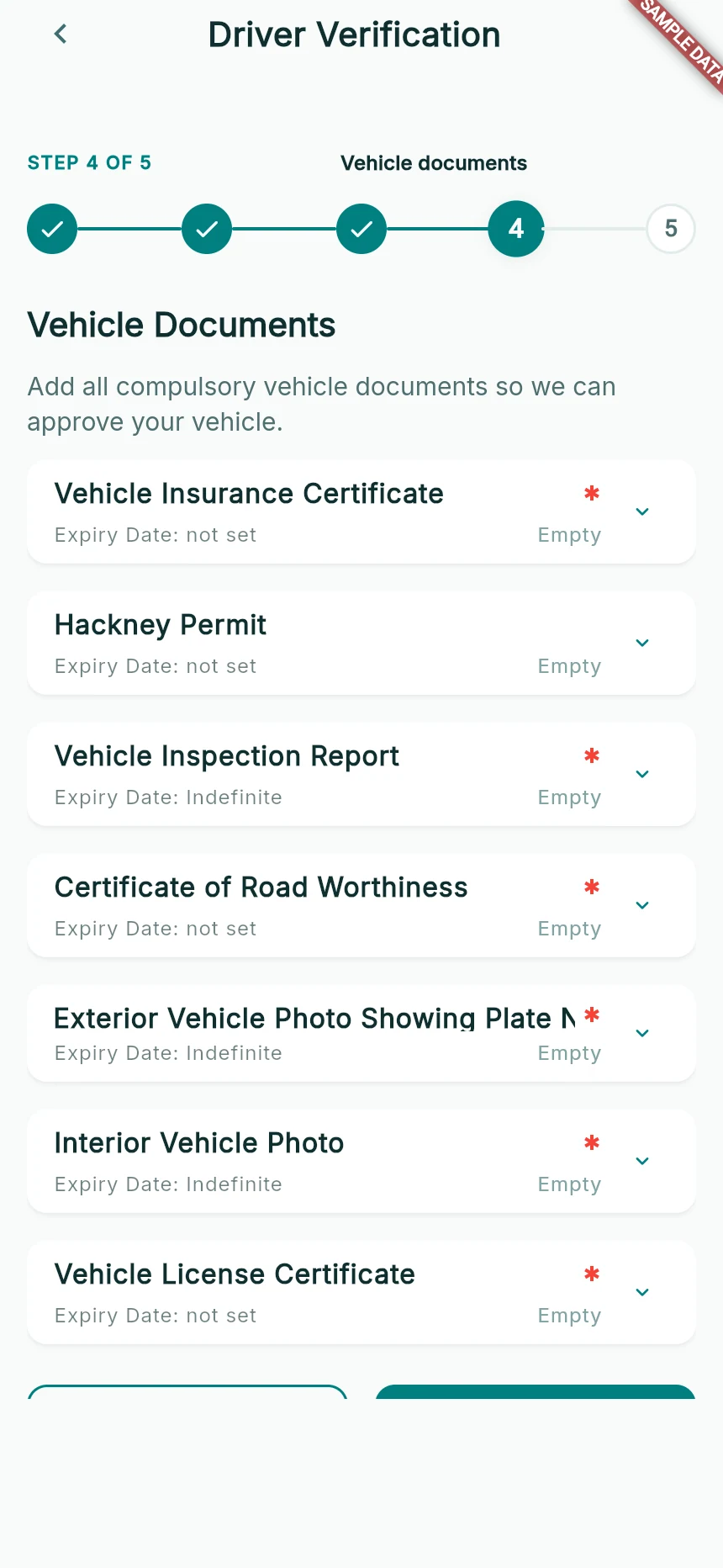
Step 4: the car vehicle-document list.
Web app · sample data · Captured 2026-09-25
- 1A red asterisk marks a compulsory field.
- 2Expiry Date and Empty describe different requirements.
- 3This is the car list. A keke showing inappropriate car-only requirements needs support review.
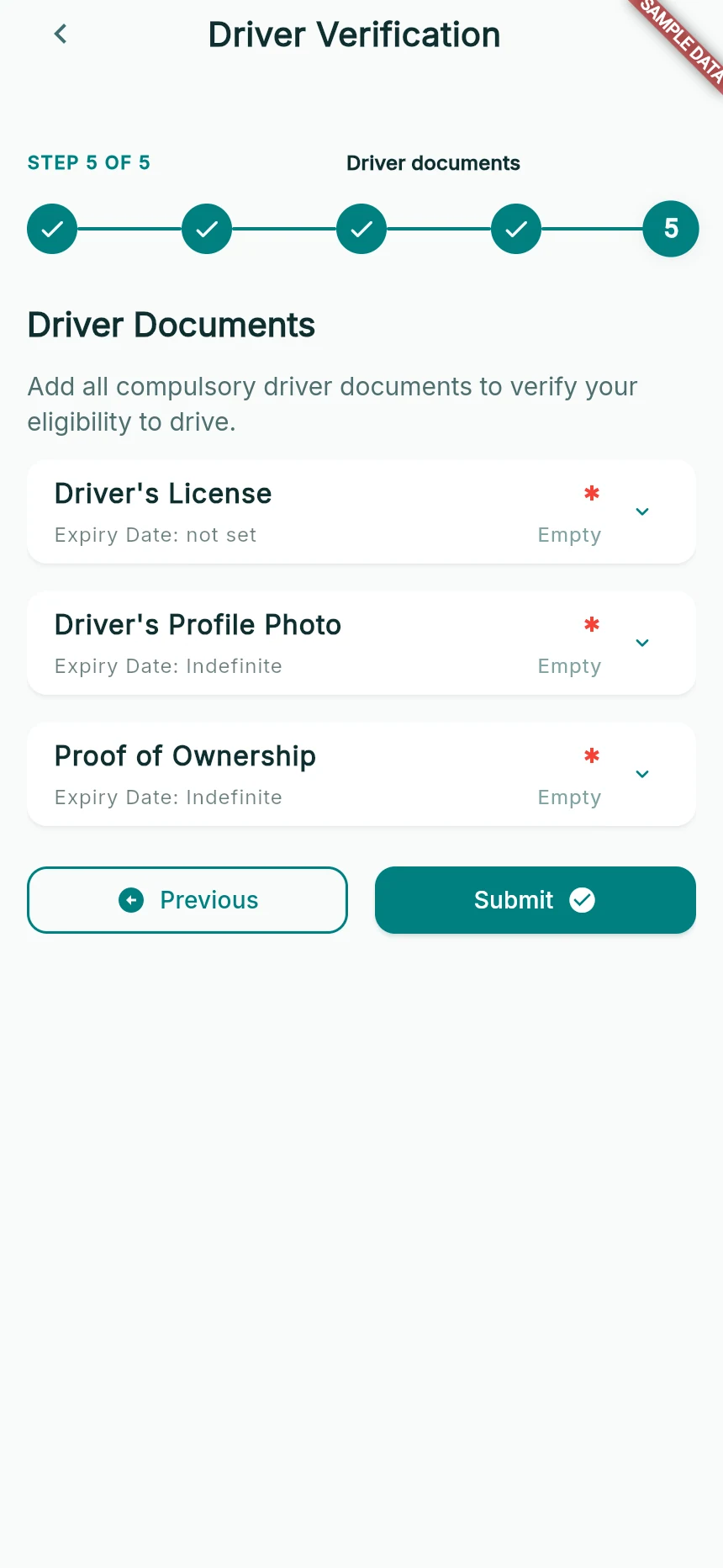
Step 5: driver documents before file selection.
Web app · sample data · Captured 2026-09-25
- 1Open each required document field to choose the correct file.
- 2Read expiry requirements before continuing.
- 3Submit opens the review path when required documents are valid.
Choose one file for the correct field
Tap the file control for that document and choose the matching photo or PDF. On web, the browser’s file picker controls the available sources. In an installed app, available camera/gallery choices depend on the device and screen.
Supply the expiry date when requested
Enter the date printed on the document for fields that require one. Do not invent a future date to clear a validation error. Fields without an expiry requirement do not need an arbitrary date.
Inspect the preview
Use View or the preview control to check that the correct file is legible. If it is wrong, replace it before submitting. Submitted file — tap to replace refers to an existing uploaded file.
Submit and read the resulting state
Continue with Next, Submit or Submit Section as shown. Wait for the upload/submission acknowledgement. Selected, uploaded/submitted and Approved represent different stages; choosing a file does not approve it.
How you know it worked
The intended documents appear in the submission/summary with the appropriate pending or reviewed status.
A useful next step
If something goes wrong
The file is too large or cannot open
Choose a supported file within the displayed limit. A clear, smaller image is better than an unreadable compressed image. Retry with another file if the preview cannot open it.
A document is rejected
Read the specific reason, replace the affected file or correct its date, and resubmit that section. See the correction guide before editing an already approved application.
An upload was interrupted
Restore the connection and check saved status. Retry the incomplete upload; do not assume it succeeded because the filename is visible.