Before you begin
- Verify your phone and email first. Use the same account you would use as a rider.
- Have your bank account, identity/licence details, vehicle details and clear document files ready.
- Registration and review are separate. Finishing the form does not immediately authorise driving.
Open driver verification
Choose Switch to Driver from the menu or enter through the driver sign-in link. Follow the introduction, then tap Start verification on Driver Home. The step indicator shows where you are in the application.
Complete Account Details
Choose your bank and enter the account number. Wait for the account name to resolve and confirm that it is yours. Tap Next after the form accepts the details. Bank setup records where eligible earnings would be paid; it does not itself enable withdrawals.
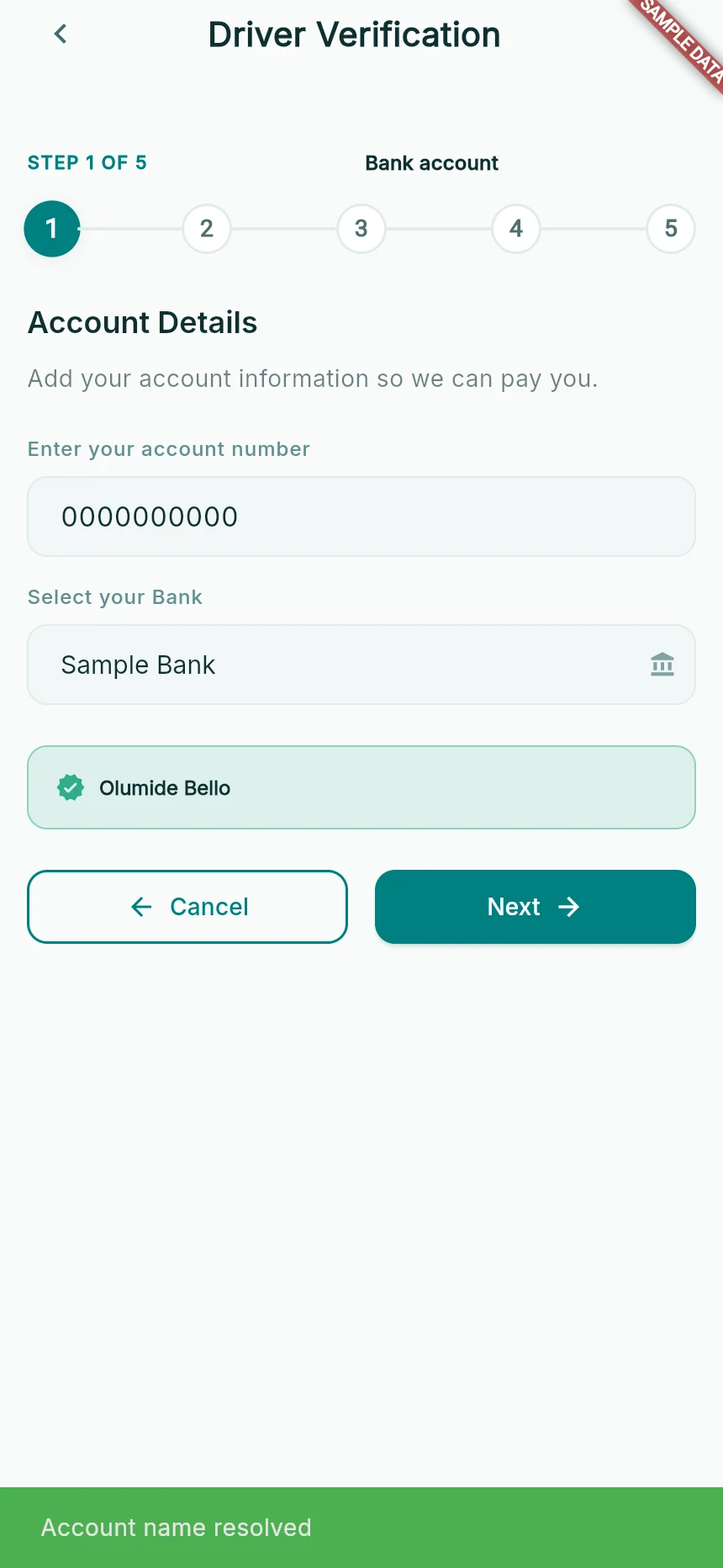
Step 1: bank account details. All values shown are fictional.
Web app · sample data · Captured 2026-09-25
- 1Enter your own account number and select the correct bank.
- 2Check the resolved account name.
- 3Continue only after the details are accepted.
Complete Driver Details
Enter your National ID, Driver License, Next of Kin Name, Next of Kin Phone and Relationship. Check for inline validation errors, then Next. Use the separate personal-details guide if a format is rejected.
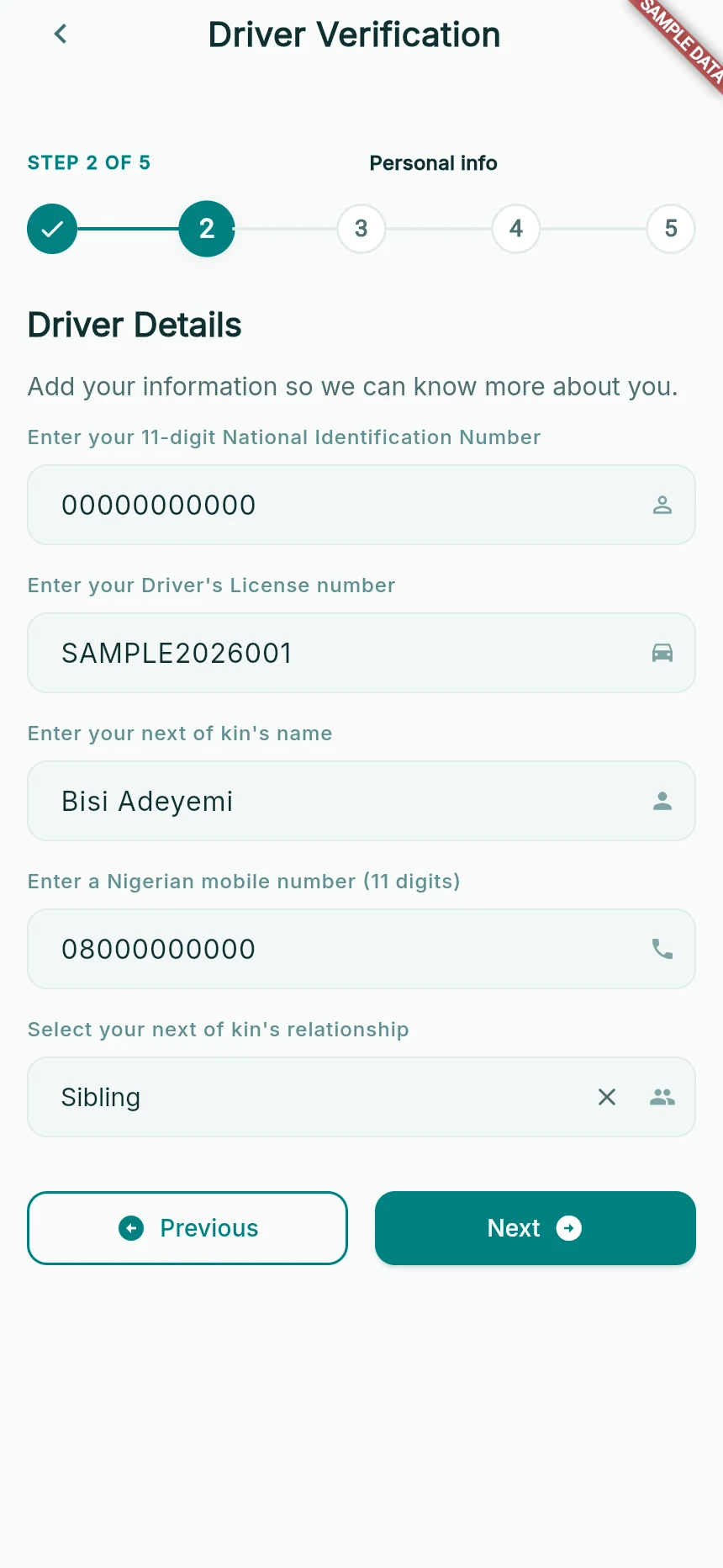
Step 2: your personal and next-of-kin details.
Web app · sample data · Captured 2026-09-25
- 1Identity and licence are separate fields.
- 2Next-of-kin contact and relationship belong to the same person.
- 3Next continues; Previous returns to the bank section.
Complete Vehicle Details
Choose the actual vehicle class and supply its make/model, year, colour, plate and passenger-seat count. Use Tricycle, the keke option, rather than choosing a car model just to continue.
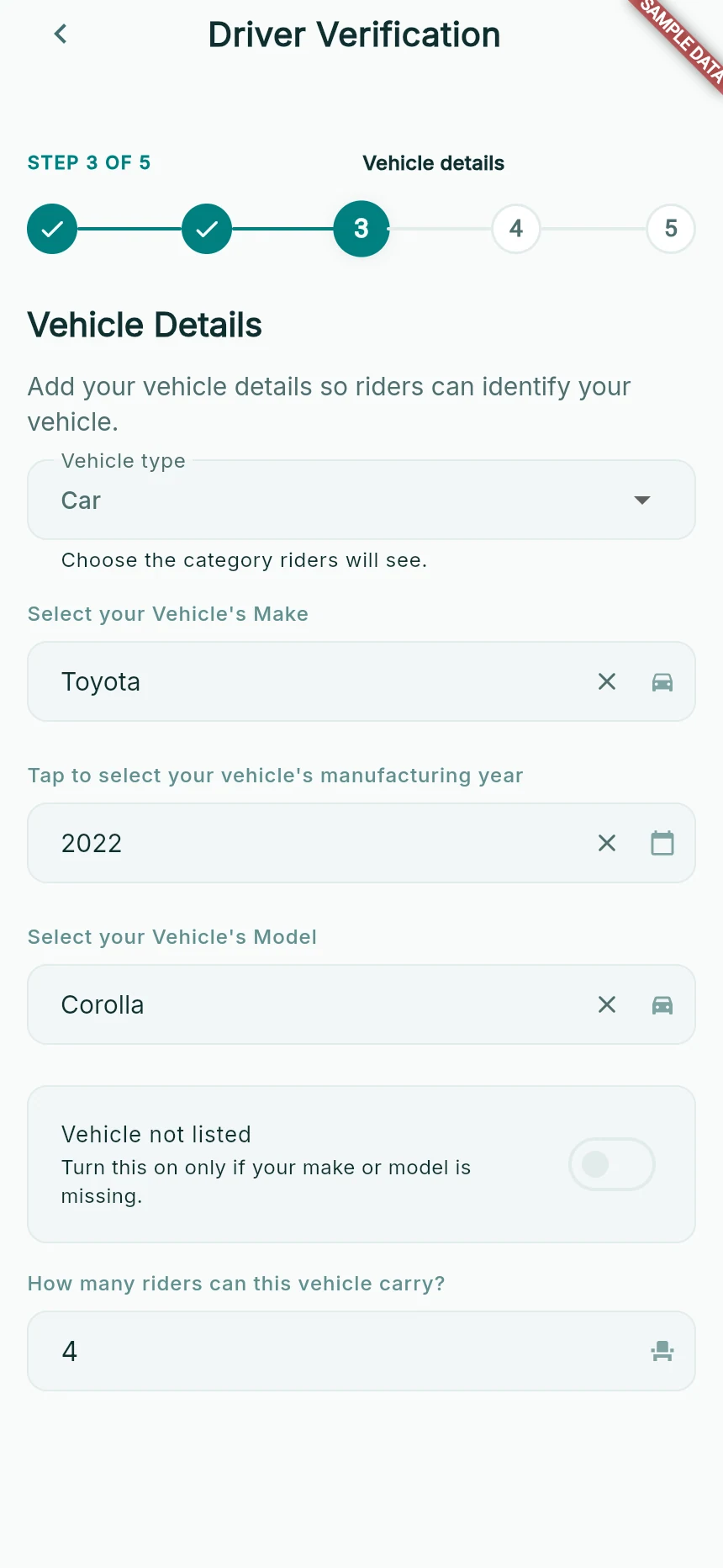
Step 3: a car registration example.
Web app · sample data · Captured 2026-09-25
- 1Choose the real vehicle class and matching make/model.
- 2The form continues below the visible area for plate, colour and navigation.
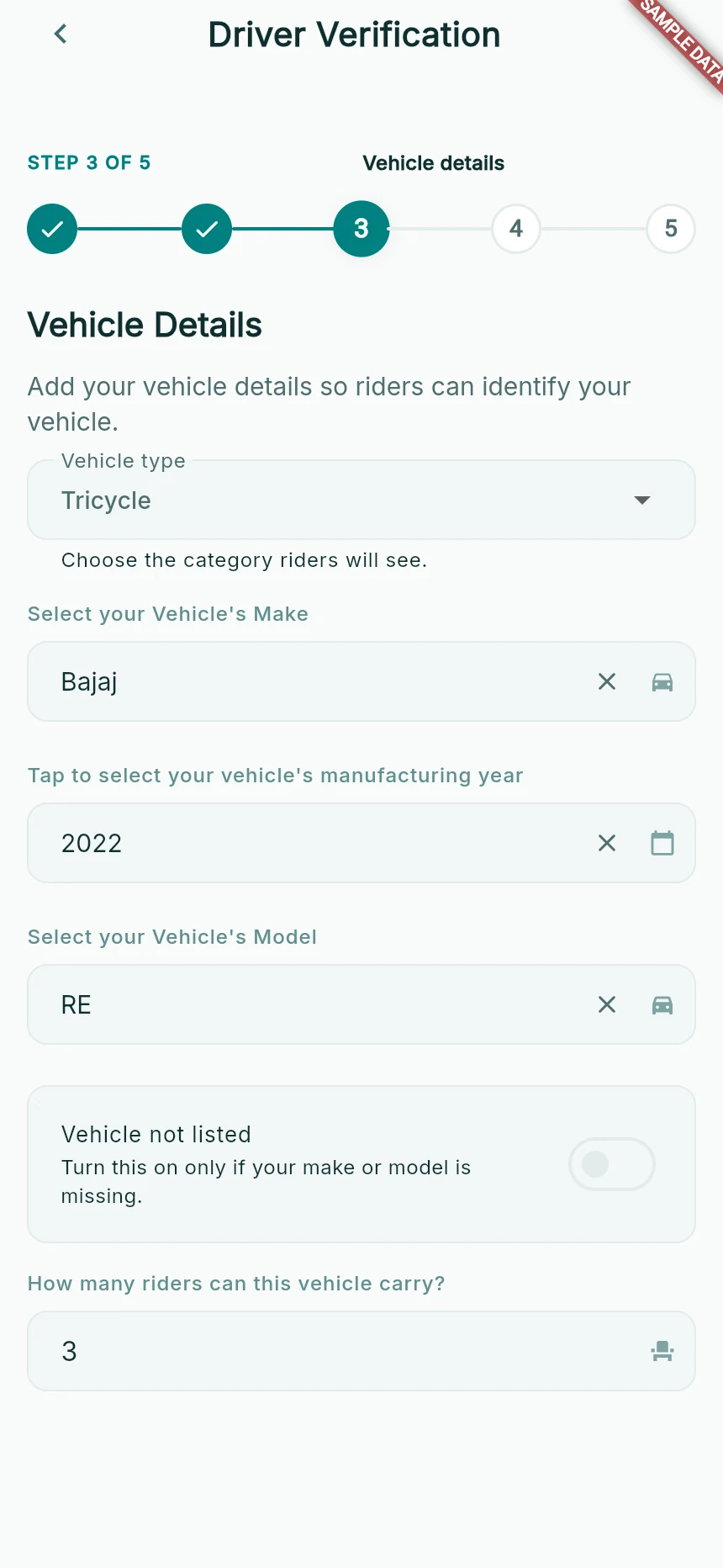
Step 3: a saved tricycle draft, using a fictional vehicle.
Web app · sample data · Captured 2026-09-25
- 1Tricycle is the keke option in this screen.
- 2Use Vehicle not listed only if the make or model is missing.
- 3Passenger seats must match the physical vehicle.
Add Vehicle Documents, then Driver Documents
Follow the required list for your vehicle class. Choose readable files, add expiry dates where requested and inspect each preview. Use Next to move between sections and Submit at the end of the document flow.
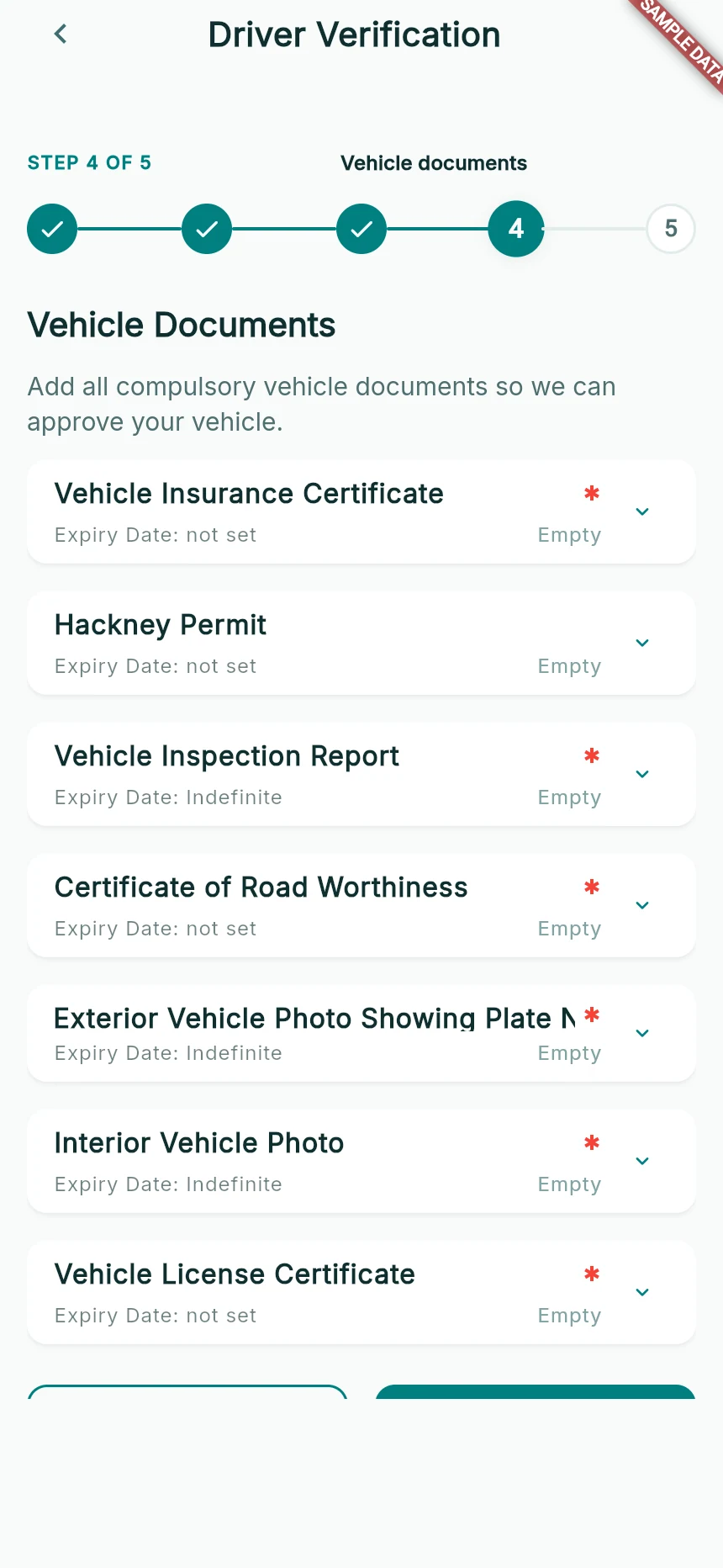
Step 4: the car vehicle-document list.
Web app · sample data · Captured 2026-09-25
- 1A red asterisk marks a compulsory field.
- 2Expiry Date and Empty describe different requirements.
- 3This is the car list. A keke showing inappropriate car-only requirements needs support review.
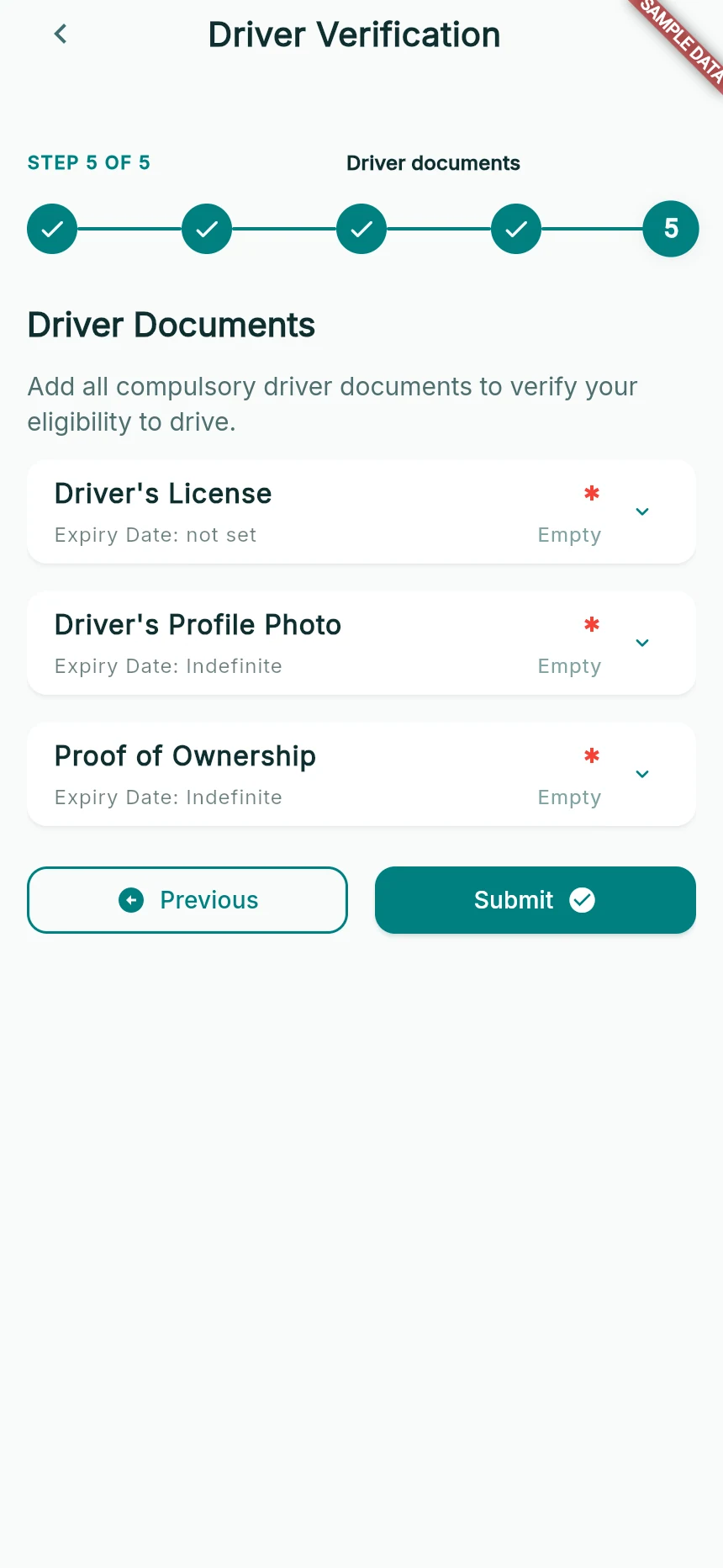
Step 5: driver documents before file selection.
Web app · sample data · Captured 2026-09-25
- 1Open each required document field to choose the correct file.
- 2Read expiry requirements before continuing.
- 3Submit opens the review path when required documents are valid.
Review and confirm
On Review & Submit, inspect all five sections. Correct omissions before Confirm & Submit. Keep the app open while it saves details and uploads files. Wait for the successful submission message and the pending/under-review state.
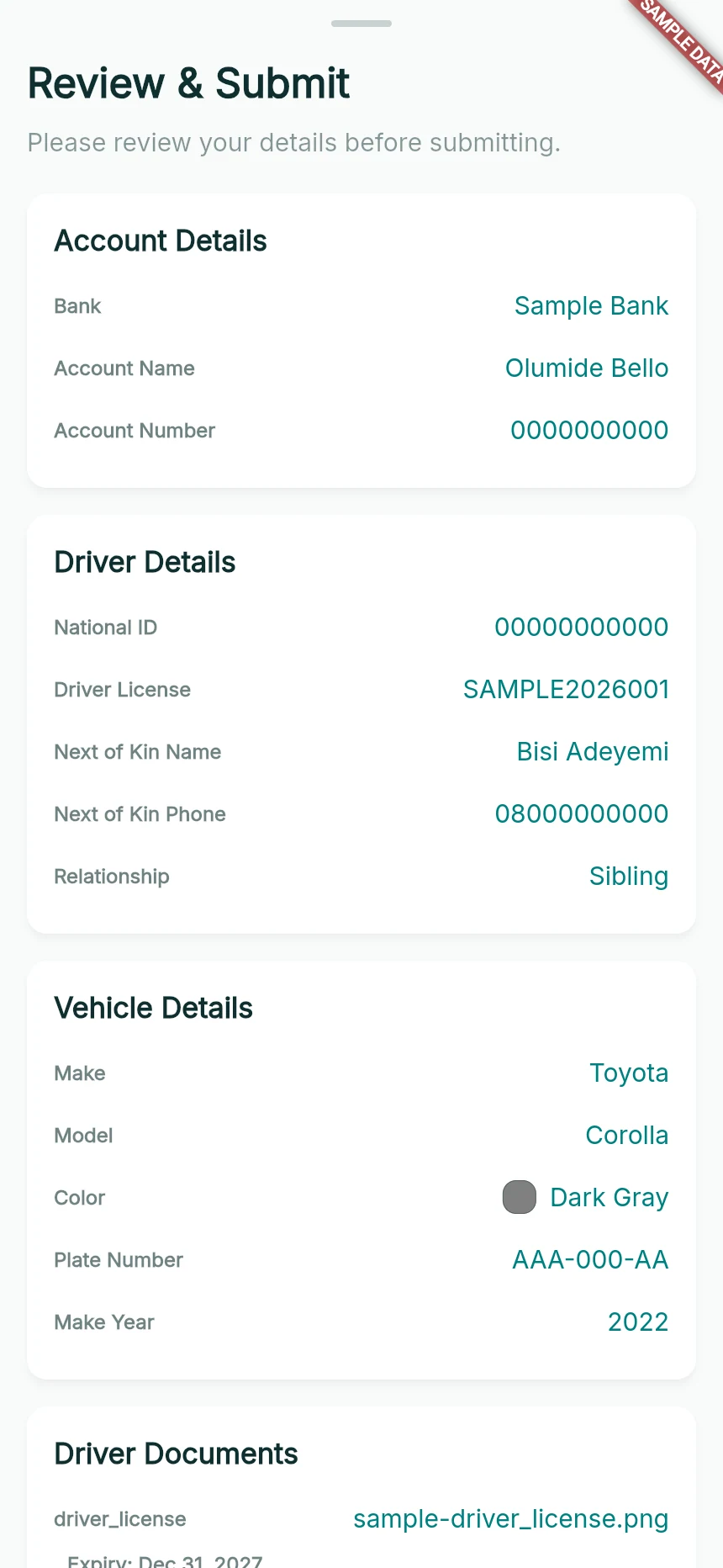
Review the saved application before final submission.
Web app · sample data · Captured 2026-09-25
- 1Check each section against your documents.
- 2Scroll through the review before the final confirmation.
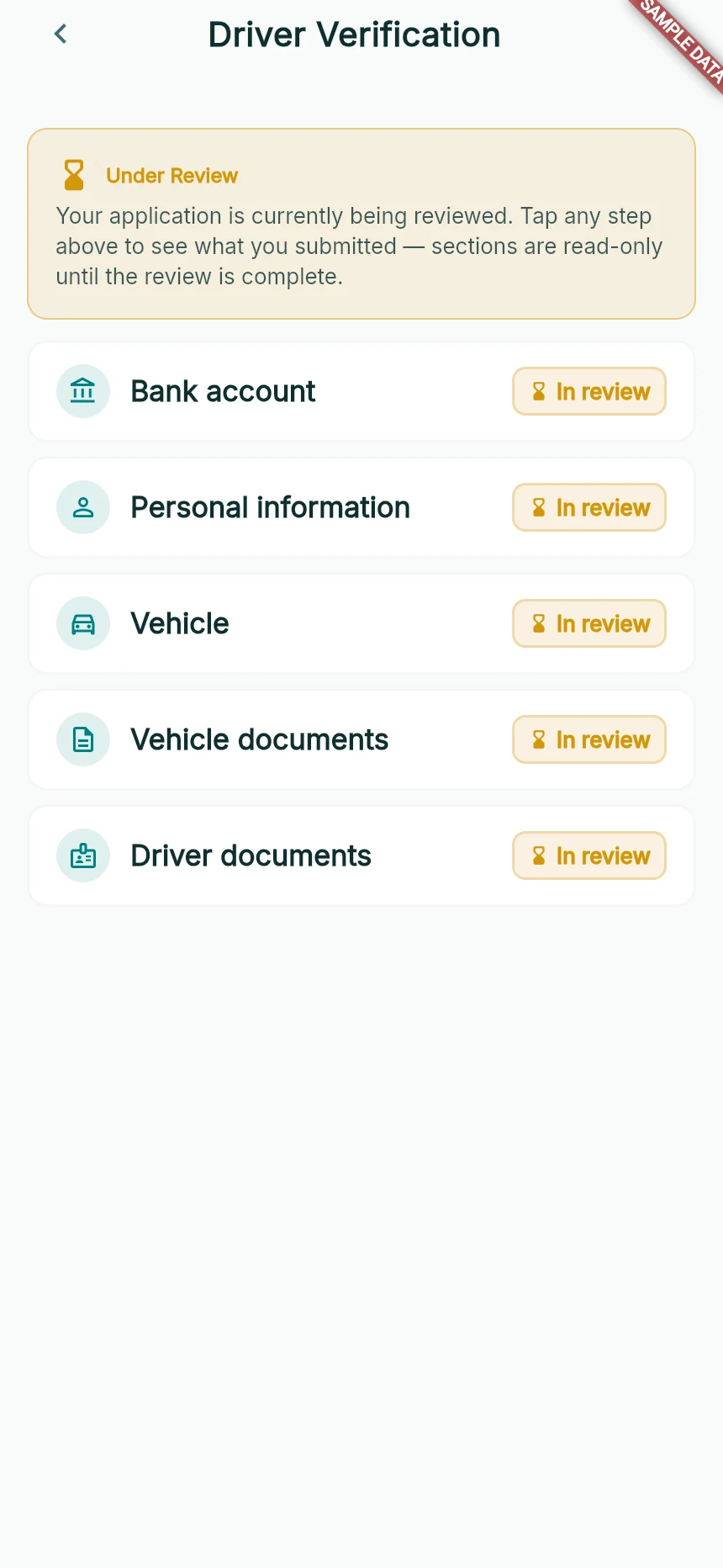
Submitted does not mean approved.
Web app · sample data · Captured 2026-09-25
- 1The overall state explains why driving is not yet available.
- 2These tiles let you inspect what was submitted.
How you know it worked
Your application is submitted for review and the app shows its status. You can return to review what you submitted.
A useful next step
If something goes wrong
A section is Incomplete
Open that section, fill the missing required field or file, and use its save/submit action. A selected local file is not necessarily an uploaded document.
Submission fails partway through
Read the failing stage and retry after restoring the connection. Check what the app has saved before selecting every file again.
The application is still under review
Wait for a review decision or contact support about the status. Do not create another account or submit misleading details to unlock driving.