Confirm the email address
Check the address in the account form before tapping Send Verification Email. The Verify your email screen tells you where the link was sent.
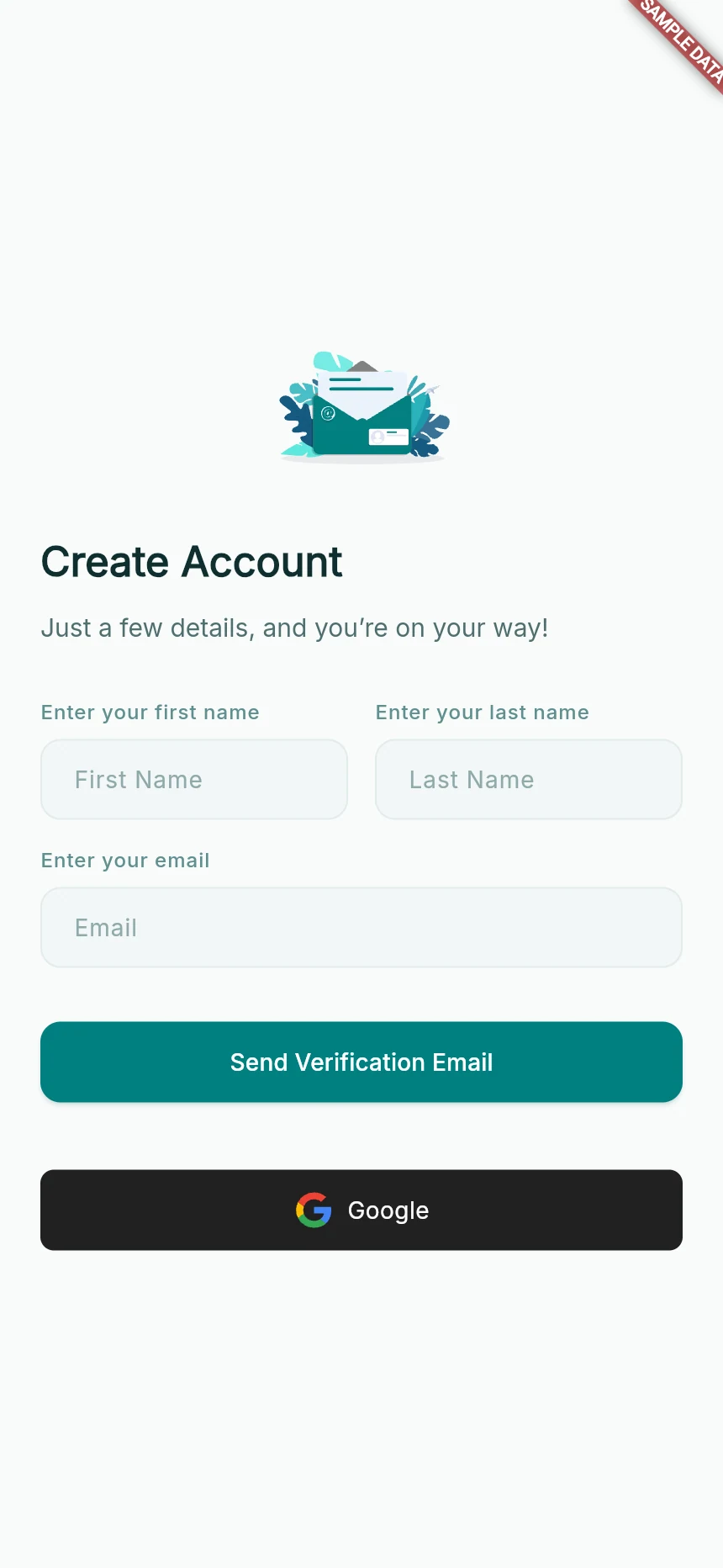
Complete the account details requested after phone verification.
Web app · sample data · Captured 2026-09-25
- 1Use your own first and last name.
- 2Check the email address before sending its verification link.
Open the latest email
Open your inbox and follow the secure verification link. Check spam or junk if the message is missing. Use the newest email if you requested another link.
Read the result
A successful link confirms your email. Return to the TagRides browser tab or app and allow it to refresh your account status. If the result says the link is expired or invalid, return to the verification flow and request a fresh link.
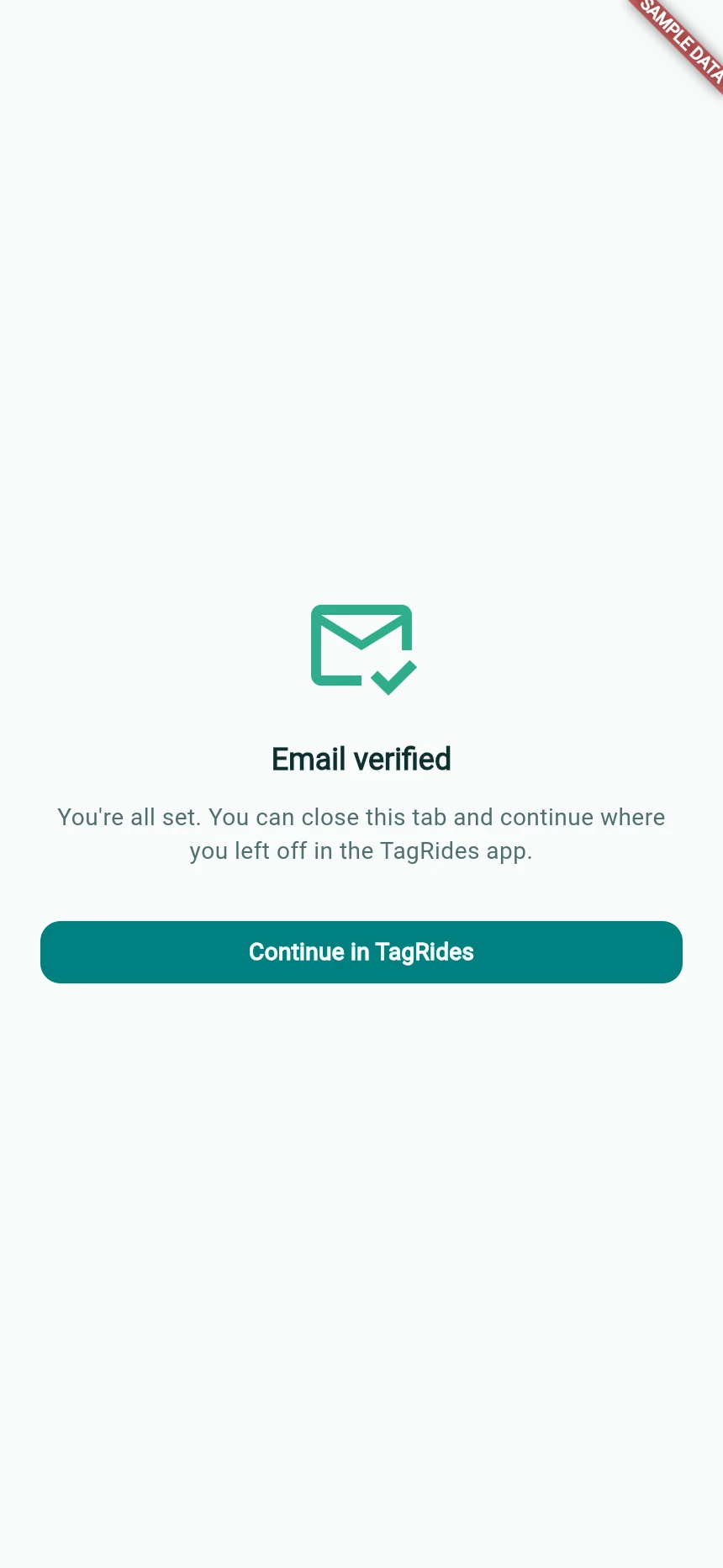
A successful email-verification result.
Web app · sample data · Captured 2026-09-25
- 1Read the result before returning to the app.
- 2Email verification is separate from driver approval.
Continue the right journey
Riders continue towards the ride home screen. Drivers continue with driver introduction or verification. Seeing a verified email does not mean your driver application has been approved.
How you know it worked
The app recognises your verified email and moves you to the next appropriate screen.
A useful next step
If something goes wrong
The app is still waiting after I verified
Return to the original app tab and give it time to refresh. If necessary, reopen the app and sign in with the same phone number. Contact support if the verified result and account state still disagree.
I used the wrong email
Correct it through the available account-verification flow before continuing. If that option is unavailable, contact support rather than registering the same identity again.