Before you begin
- Have access to the phone number you enter.
- If you are joining as a driver, use app.tagrider.com/signin?intent=drive.
Enter your phone number
On Welcome to TagRides, choose the correct country code and enter your phone number. Check the full number carefully before asking for a code.
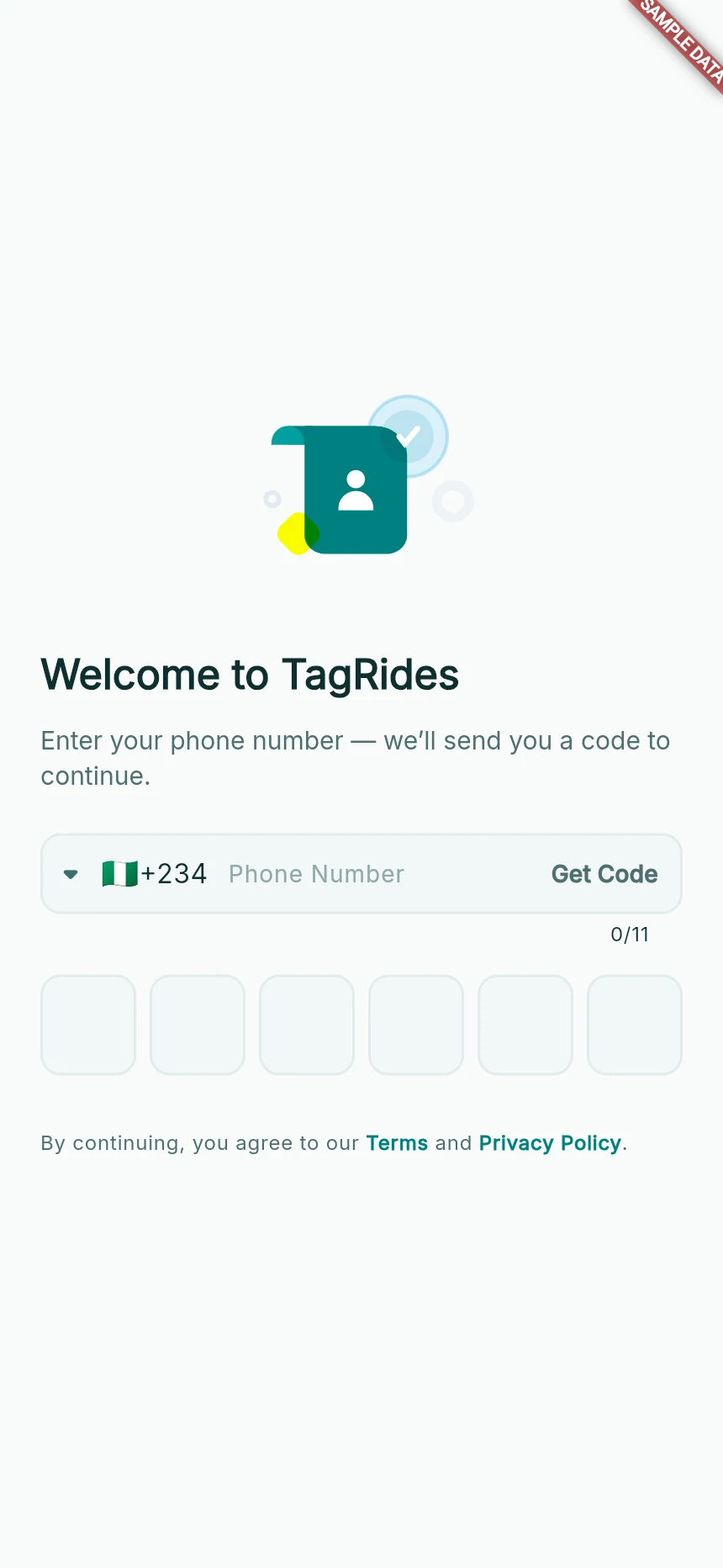
The phone-first sign-in screen.
Web app · sample data · Captured 2026-09-25
- 1Check the country code and phone number before Get Code.
- 2Use the newest verification code in these boxes.
Request and enter the code
Tap Get Code when shown. Enter the verification code sent to your phone, then use the screen’s continuation action. Use the most recent code if you requested another one.
Follow the next screen
TagRides checks whether the number already belongs to an account. Existing users continue into the app; new or incomplete accounts may be asked for their name and email. You do not need a second account to become a driver.
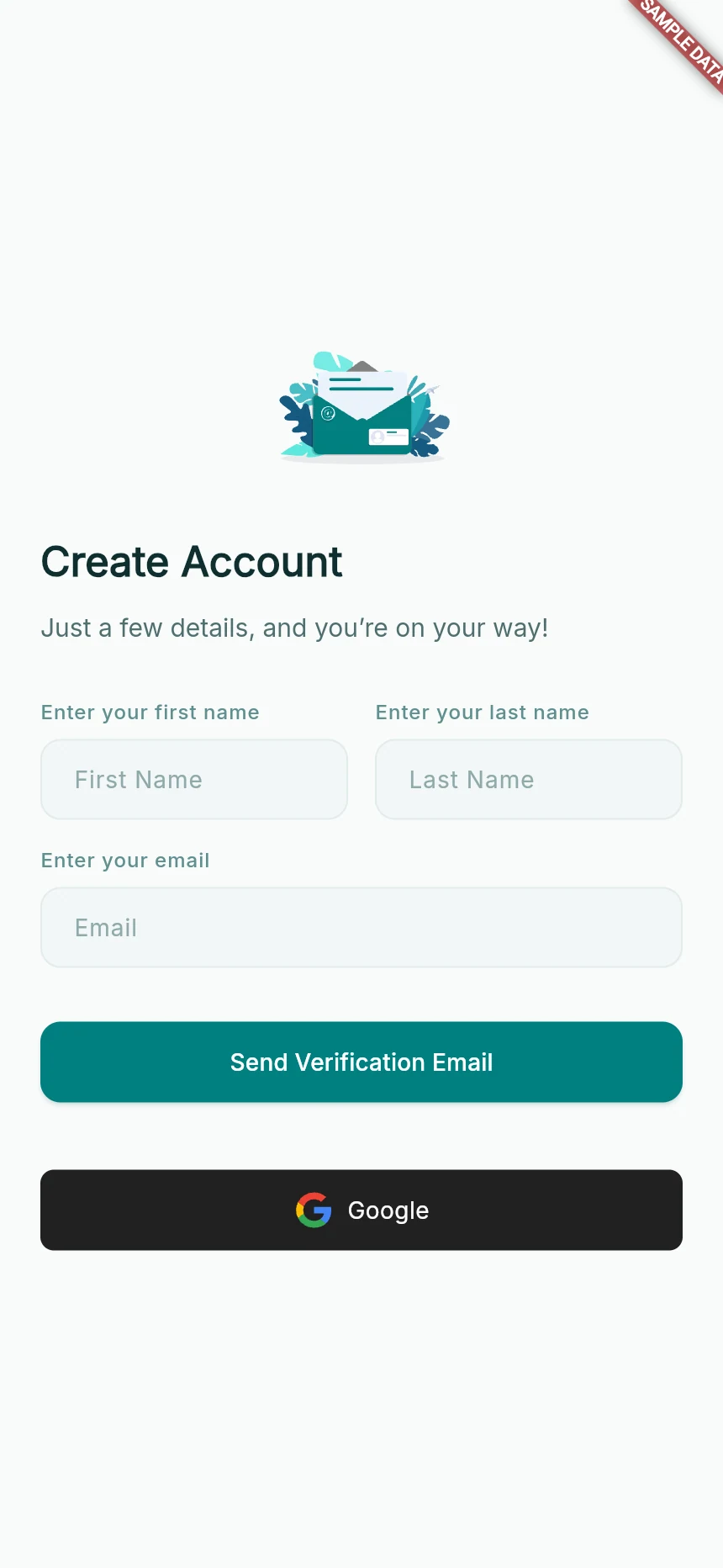
Complete the account details requested after phone verification.
Web app · sample data · Captured 2026-09-25
- 1Use your own first and last name.
- 2Check the email address before sending its verification link.
Complete email verification if requested
Enter your First Name, Last Name and Email, then follow Send Verification Email. A displayed Google or Apple option can help verify email, but it does not replace the required phone step.
How you know it worked
Your phone is verified and the app either opens your account or clearly tells you which account-verification step remains.
A useful next step
If something goes wrong
The code has not arrived
Check the number and wait for the resend timer. Use Get Code again when it becomes available. Repeated requests can trigger a temporary limit.
The code is rejected
Check that you entered the newest code and that it has not expired. Request another when allowed; do not create another account as a workaround.
Someone asks for your code
Do not share it. Support does not need your OTP, password or PIN to explain an account problem.