Read the person and vehicle
Each card identifies a driver and vehicle. Check the name, rating, vehicle description and plate where available. A Keke is a tricycle; confirm that it can accommodate your whole group.
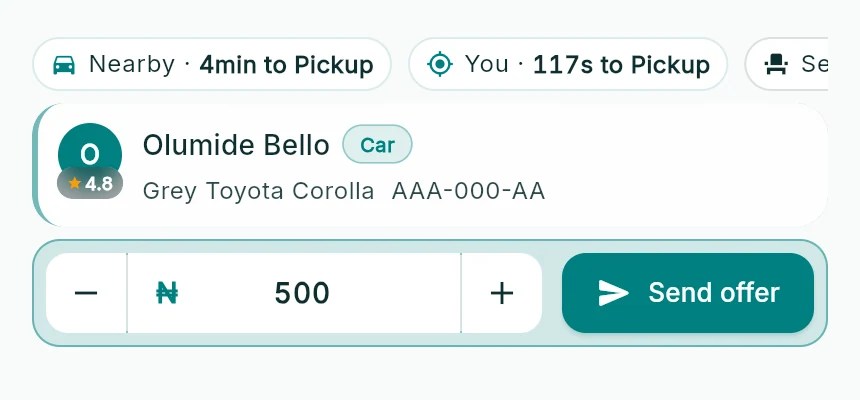
The driver card’s offer controls, shown as an app-panel detail.
Web app panel · sample data · Captured 2026-09-25
- 1The metric strip distinguishes driver and rider pickup estimates; it can scroll horizontally.
- 2Check the name, vehicle and plate.
- 3Edit the offer and send it once.
Separate walking from driving
Read which time or distance belongs to you and which belongs to the vehicle. An arrival estimate can change as traffic and location updates change. It is not a guaranteed arrival time.
Check fare and seats
Compare the displayed offer, the available seats and your requested seats. A fare agreement does not mean a passenger is already onboard. Read the current state alongside the price.
Explore alternatives
Swipe through the cards or open the driver-options surface. Viewing a card and choosing it are different actions. Look at the selected-driver strip to identify your current chosen driver.
How you know it worked
You can explain who would pick you up, where you would meet, what the offer is and whether the vehicle fits your party.
A useful next step
If something goes wrong
A card disappears
The driver may have moved beyond a useful overlap, ended the route, lost availability or filled the vehicle. Review the remaining options rather than following a stale screenshot.
A marker is close but the pickup takes longer
A nearby marker can be on the other side of a divided road or need a longer road approach. Use route guidance, not straight-line distance alone.