Before you begin
- Complete driver verification and wait for the app to enable driving.
- Set up the journey while safely stationary.
Open Driver Home
Switch to the driver role. If a verification message replaces the route controls, resolve that status first. Allow location access and wait for the current position to settle.
Choose your destination
Select Along and search for the place you actually intend to reach. Check the result and route. This destination describes your journey; passengers can join useful portions of it.
Review the offered seats
On Confirm ride, review Current location, Destination and Seats offered this trip. Offer only seats you can provide, accounting for passengers already in the vehicle.
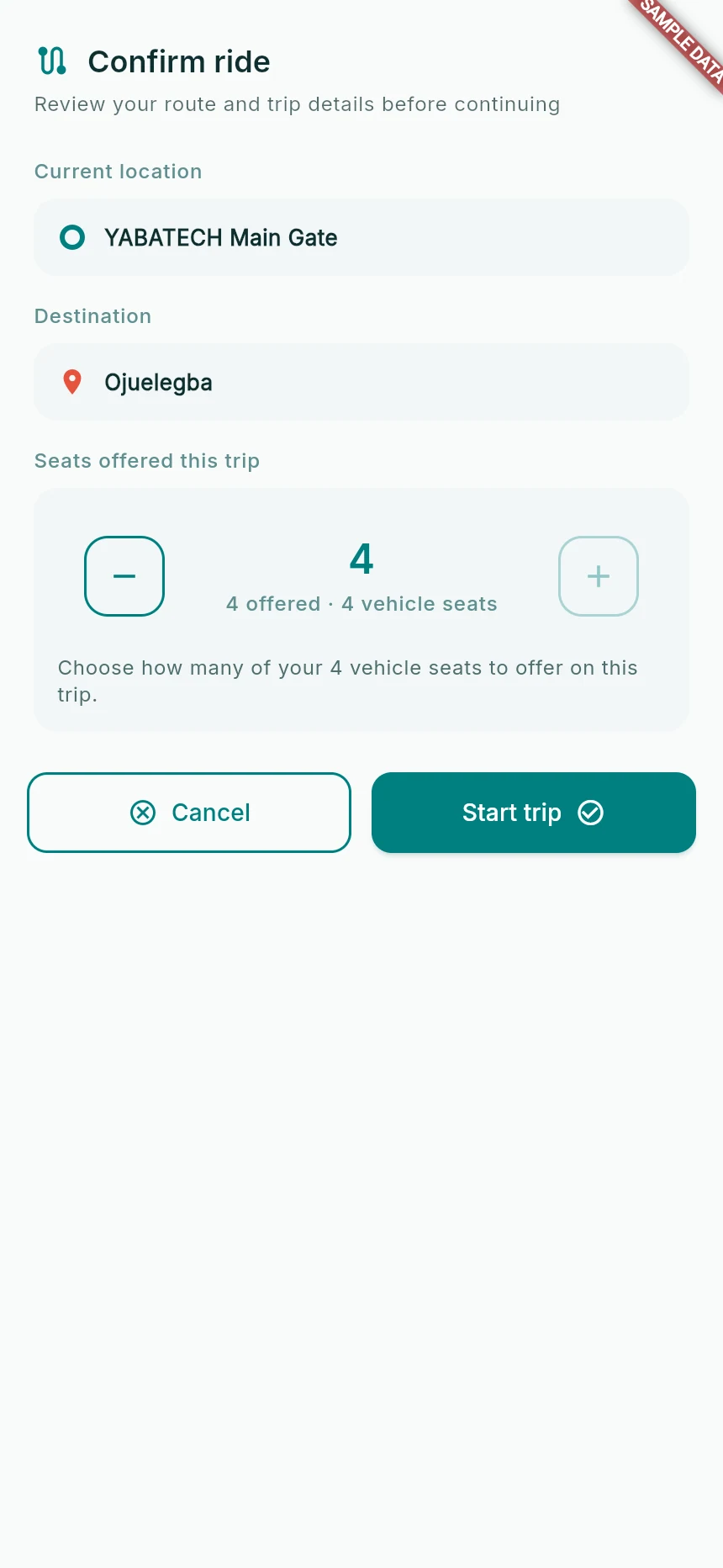
Choose how many passenger seats to offer on this route.
Web app · sample data · Captured 2026-09-25
- 1Check the route you actually intend to drive.
- 2Offered seats are not a count of passengers already onboard.
- 3Start trip opens the route; it does not board a rider.
Start once and wait for confirmation
Tap Start trip. Wait for the driver marketplace/journey screen. Incoming requests are opportunities to review, not proof that riders have boarded.
How you know it worked
The app shows an active Along route with the correct destination and offered capacity.
A useful next step
If something goes wrong
Start trip is unavailable
Check verification eligibility, location and route readiness. Do not make another account to bypass an incomplete application.
No offers arrive
There may be no rider with a suitable overlap, pickup or requested capacity. Check network status and the active service area; a route being online does not guarantee demand.