Before you begin
- Use a phone with mobile data or Wi-Fi and device location switched on.
- Start at app.tagrider.com. The main tagrider.com website explains the product; it is not the ride-request screen.
Open the app
Visit https://app.tagrider.com/signin in your phone browser. Wait for the TagRides opening screen to finish. Sign in with the phone number you use for your account.
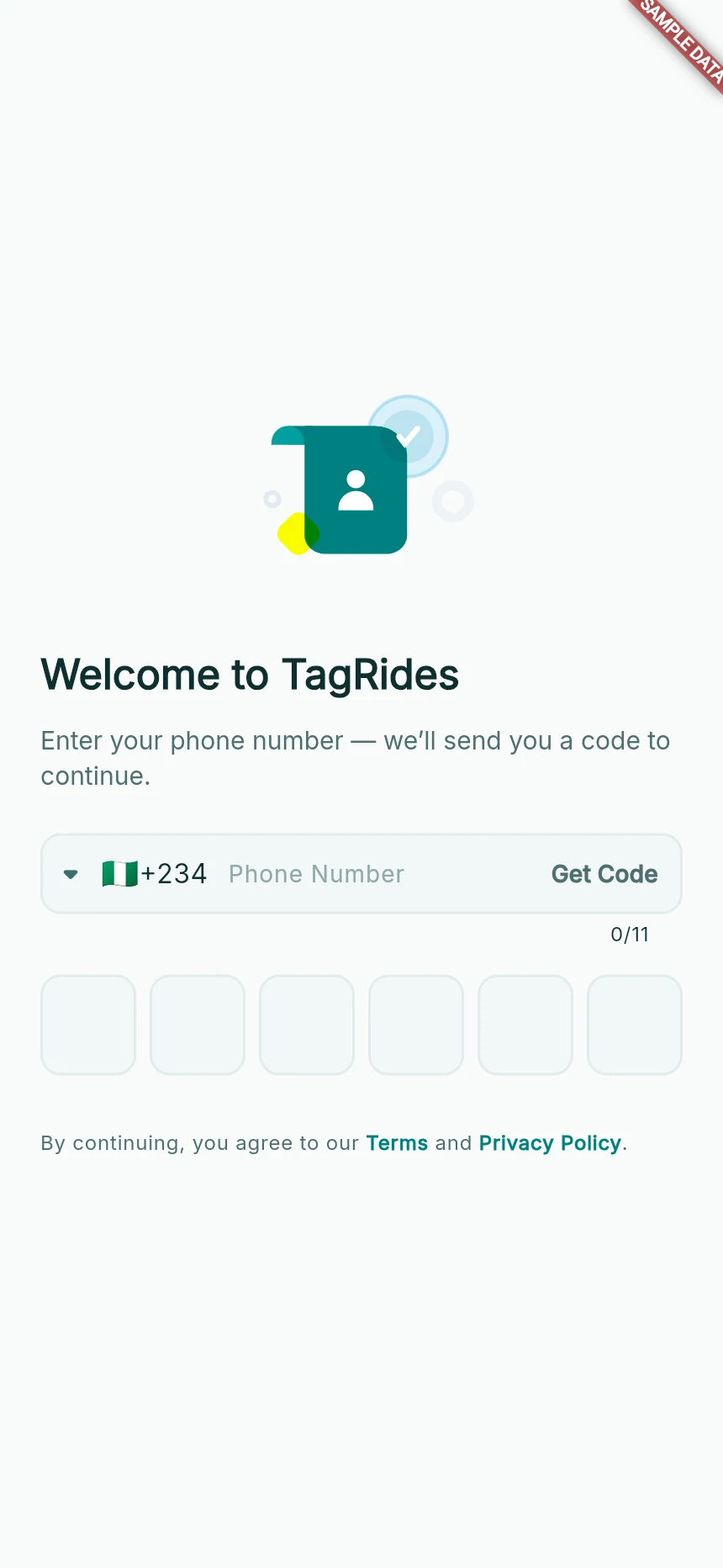
The phone-first sign-in screen.
Web app · sample data · Captured 2026-09-25
- 1Check the country code and phone number before Get Code.
- 2Use the newest verification code in these boxes.
Allow location when asked
When the browser asks to use your location, choose Allow. If the app shows Enable location, tap Enable. Turn on device location as well as browser permission; one does not replace the other.
Check that your position makes sense
Let the position settle before choosing a destination. A GPS estimate can drift indoors. If the pin is clearly wrong, move to a place with a clearer signal and retry. Do not place a pickup across a divided road simply to make the route appear.
Find the menu
Open the menu on the home screen for Profile, Wallet, History and Help & Support. Driver options appear according to your role and verification status. You can return to the home screen to begin a journey.
How you know it worked
You can open the app, access your account and see a usable current position before requesting or offering a ride.
A useful next step
If something goes wrong
Location stays unavailable
Check both phone location settings and this website’s browser permission. Return to TagRides and use Retry. Your destination may remain saved while location is being refreshed.
The app keeps loading
Check your connection and wait briefly. If it remains stuck, record the message and contact support. Avoid clearing browser storage during an active trip or document upload.